Update an account balance
Set the current balance for one account when you do not want to enter every missing transaction.
When to use this
Use a balance update when the account balance needs to match your current balance, but you do not want to enter every missing transaction one by one.
Do not use it first if one transaction is wrong. If a cleared item has the wrong amount, date, or balance behavior, fix that transaction from Forecast or Past first.
What it creates: Foreseenly adds a single Balance Adjusted transaction and clears it immediately so the account balance moves to the amount you entered.
Before changing the balance
- Check the account’s Forecast for overdue manual items that still need to be cleared.
- Check Past for a recently cleared transaction with the wrong amount or date.
- If you need to undo or adjust a cleared item, restore it first, then clear it again with the correct details.
Update the balance
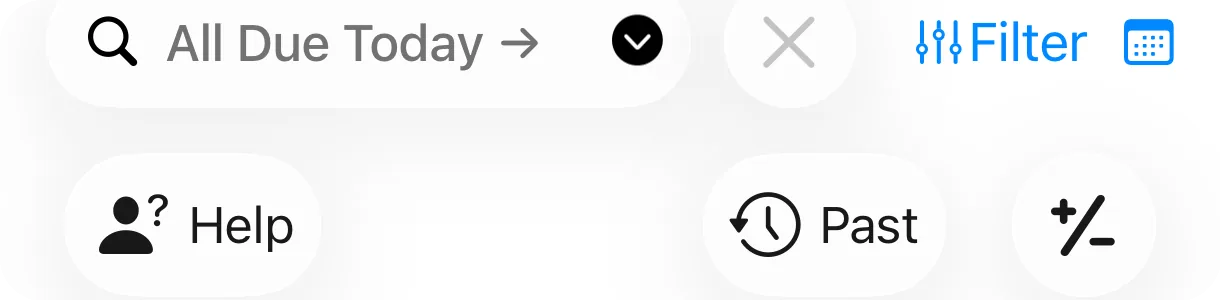
- Open the specific account whose balance needs to change. Do not make the adjustment from All Accounts.
- Tap the +/− control.
- Enter the balance you want the account to show.
- Save, then review the account Forecast to confirm the balance now matches what you expect.

Asset accounts
For an asset account, open the asset account directly before adjusting its value or balance. If your asset account screen looks different, update Foreseenly from the App Store first.
Need more help? Search this product's help articles, share a product idea, or send a ticket if you still need help.
Was this article helpful?
Your vote helps QApps find articles that need clearer steps or better screenshots.
What was missing?